Login
After opening CodeVista on the Visual Studio, click to select By checking this box, I acknowledge that I have read, understand, and agree to be bound by the Terms of Service. for continuous login to the CodeVista, start a Chat and run CodeVista commands or get access to relevant resources.
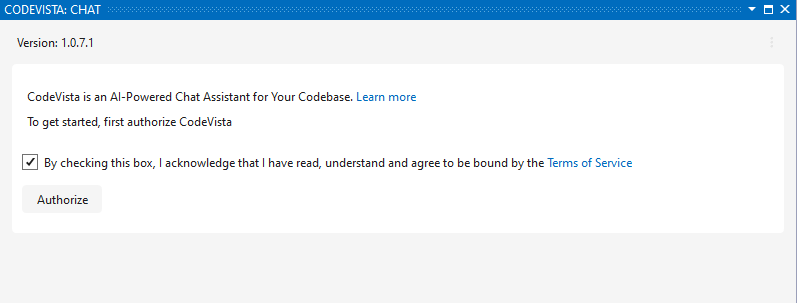
Click to choose your @fpt.com account email for continuation.

Grant Permissions (if prompted)
-
Depending on your system configuration, you may be prompted to grant certain permissions to the ****CodeVista extension.
-
Review the requested permissions and grant them if you're comfortable doing so.
Start Using CodeVista
- After logging in, you can start interacting with CodeVista by typing your coding questions or tasks in the prompt input box.
- Explore the various features and functionalities of CodeVista by following the instructions in the User Guide.
Fix Login for Visual Studio
- Configure Proxy Settings according to Windows System Proxy Settings
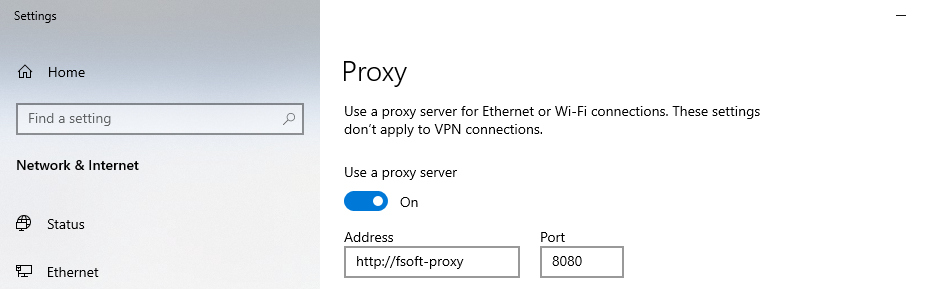
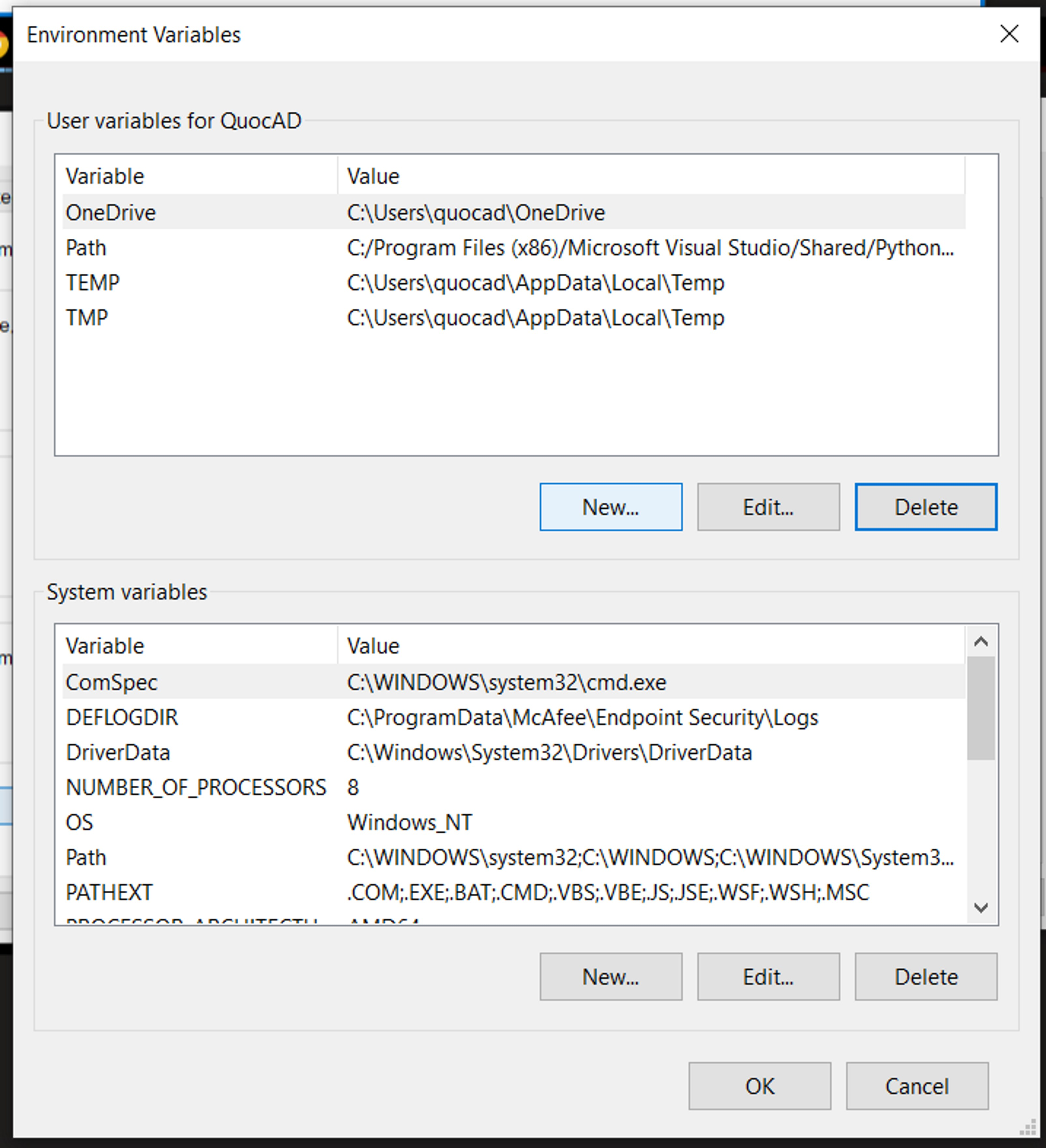
- Configure Bypass Proxy for codevista.fsoft.com.vn in System Environment Variables
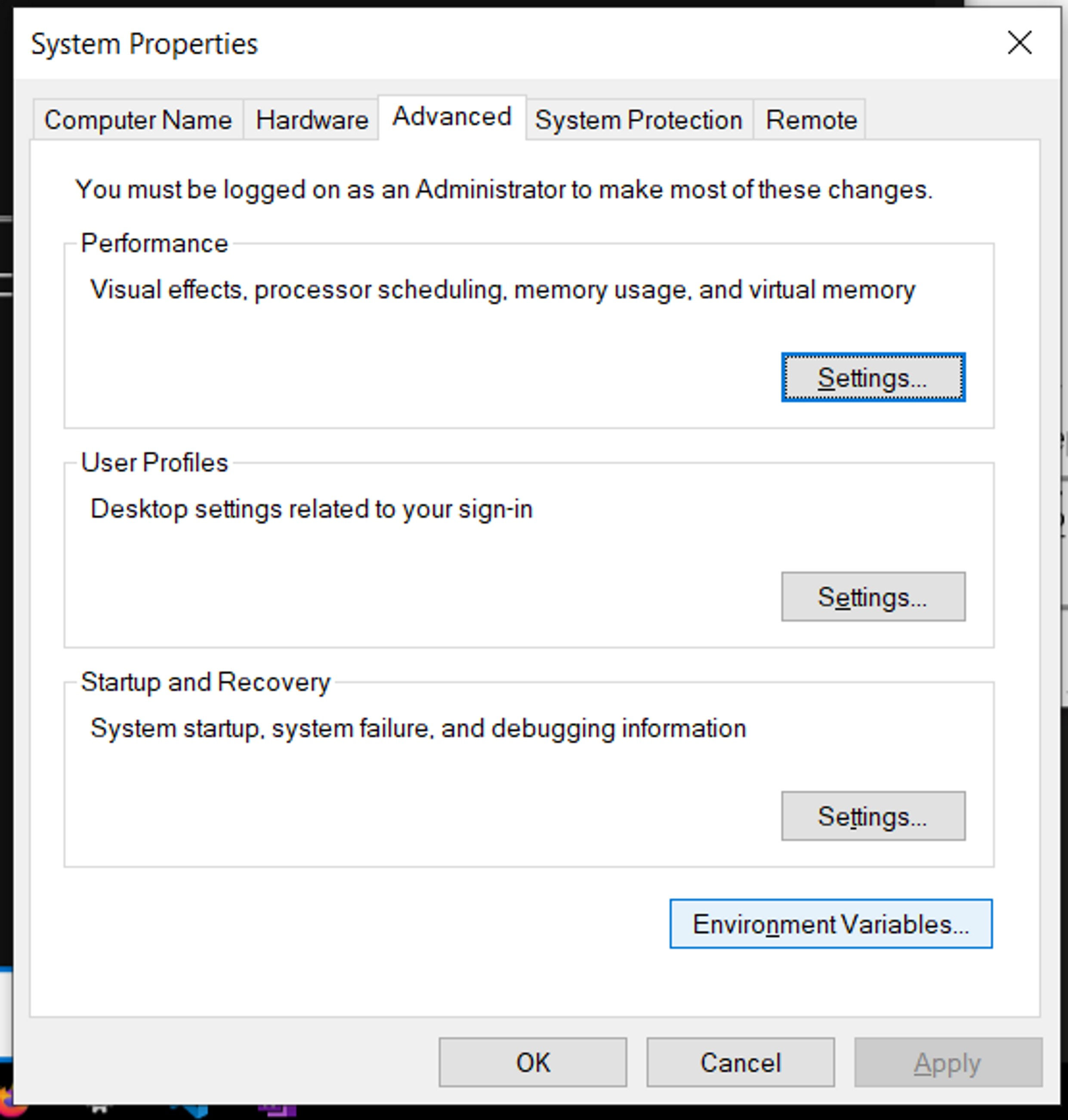
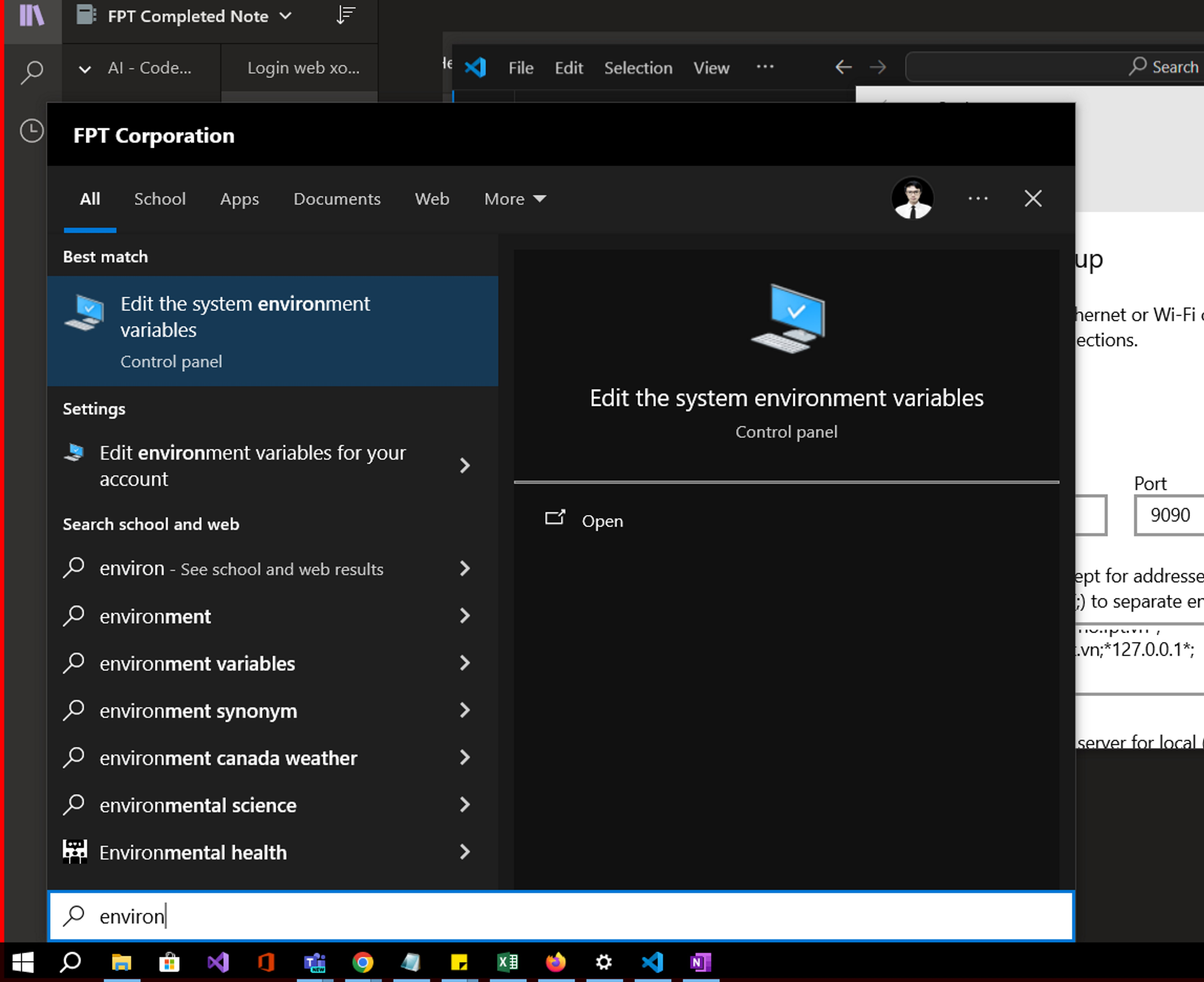
- Add a Variable in the User Variables for...
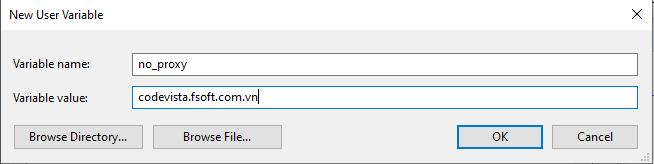
- The variable name is no_proxy and the variable value is codevista.fsoft.com.vn
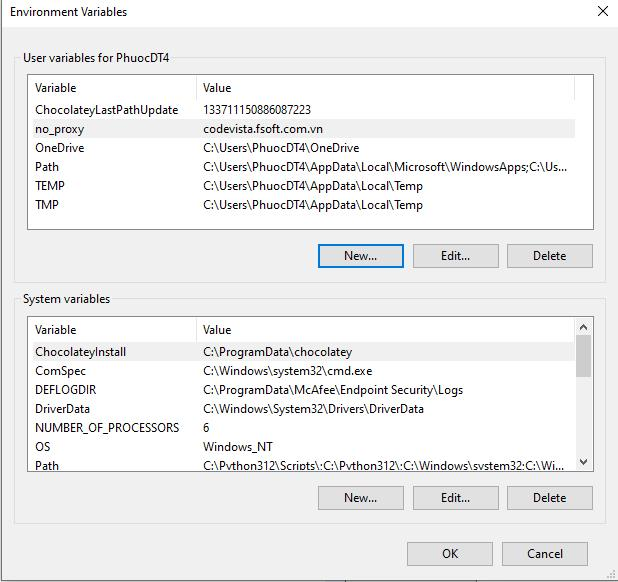
- Upon successful completion → Restart Visual Studio and log in CodeVista.