Login
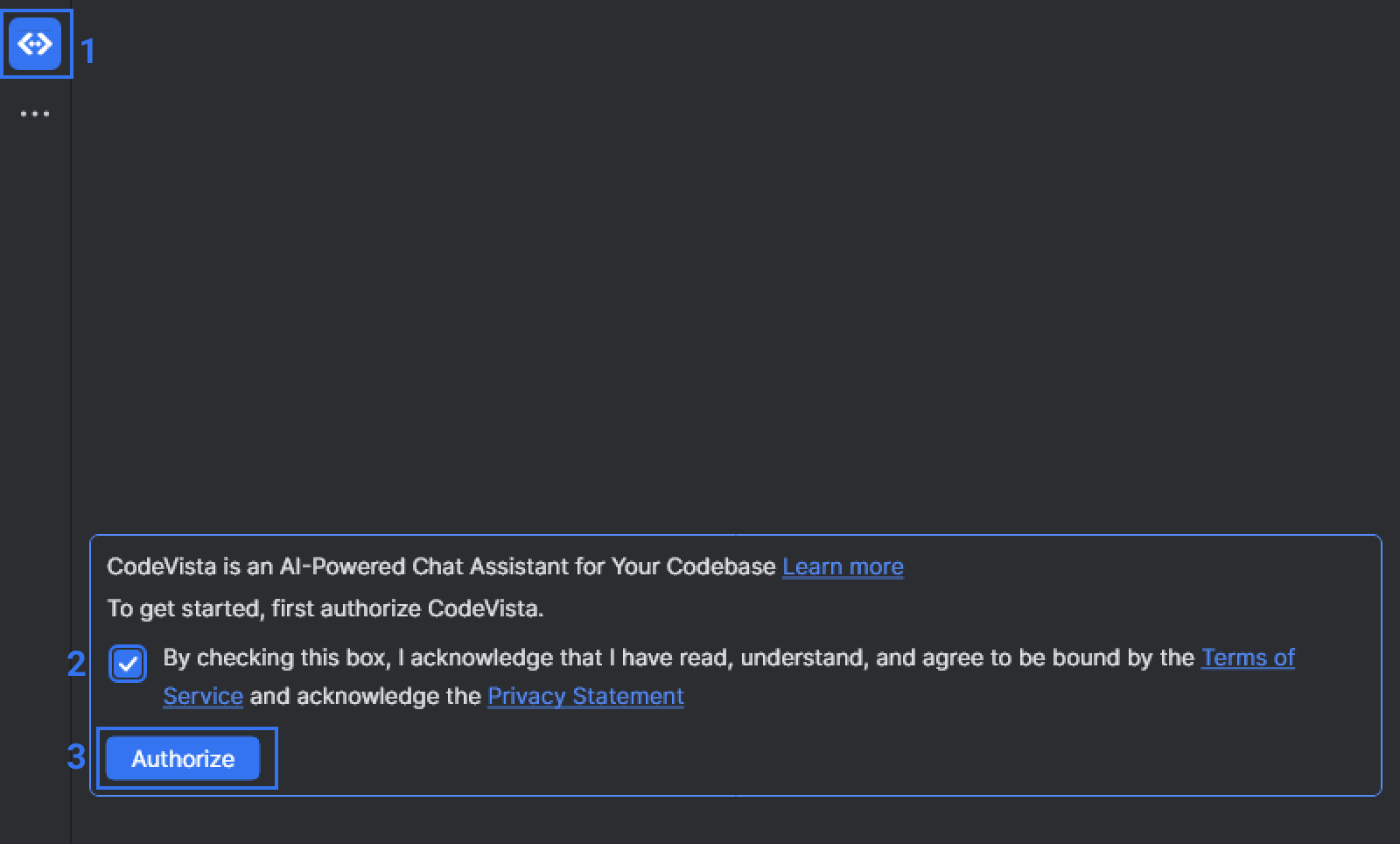
After opening CodeVista on the Jetbrains, click to select “By checking this box, I acknowledge that I have read, understand, and agree to be bound by the Terms of Service.“ for continuous login to the CodeVista, start a Chat and run CodeVista commands or get access to relevant resources.
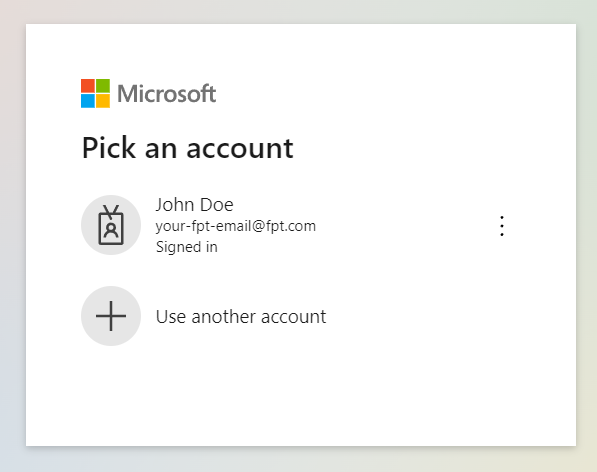
Click to choose your @fpt.com account email for continuation.
Grant Permissions (if prompted)
-
Depending on your system configuration, you may be prompted to grant certain permissions to the CodeVista extension.
-
Review the requested permissions and grant them if you're comfortable doing so.
Start Using CodeVista
- After logging in, you can start interacting with CodeVista by typing your coding questions or tasks in the prompt input box.
- Explore the various features and functionalities of CodeVista by following the instructions in the User Guide.
Fix login for intelliJ
- Select File → Settings → Search for Proxy:
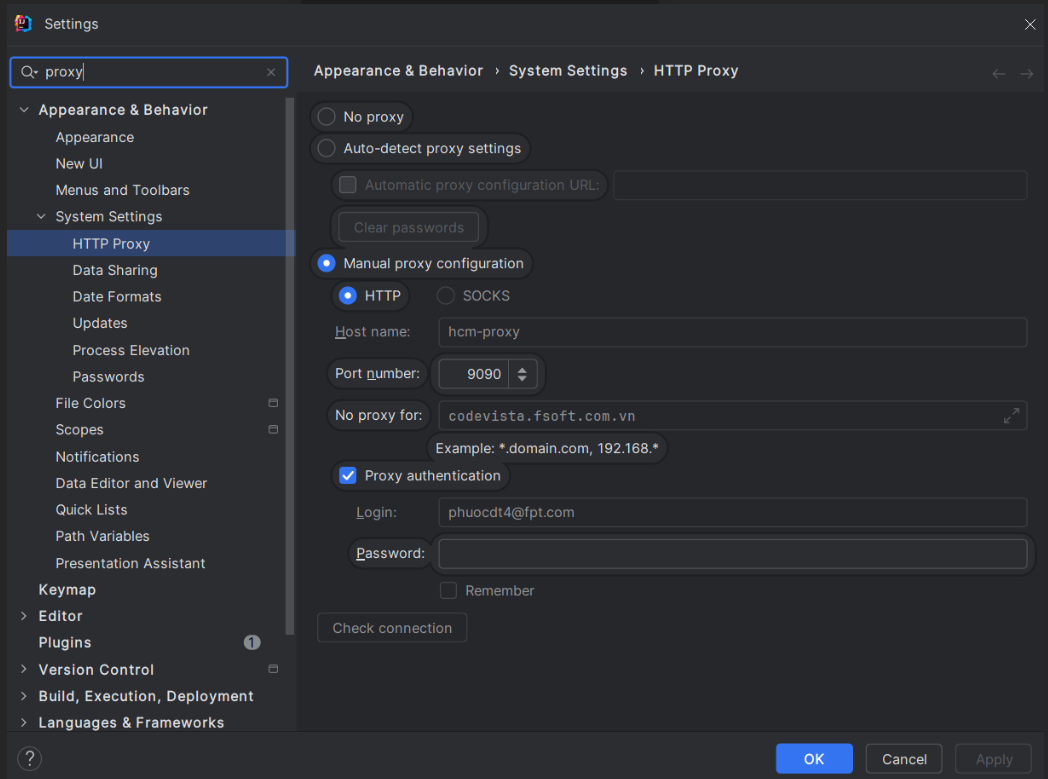
Depending on the individual machine's configuration, there may be two cases for configuring proxies in JetBrains IDEs.
Case 1
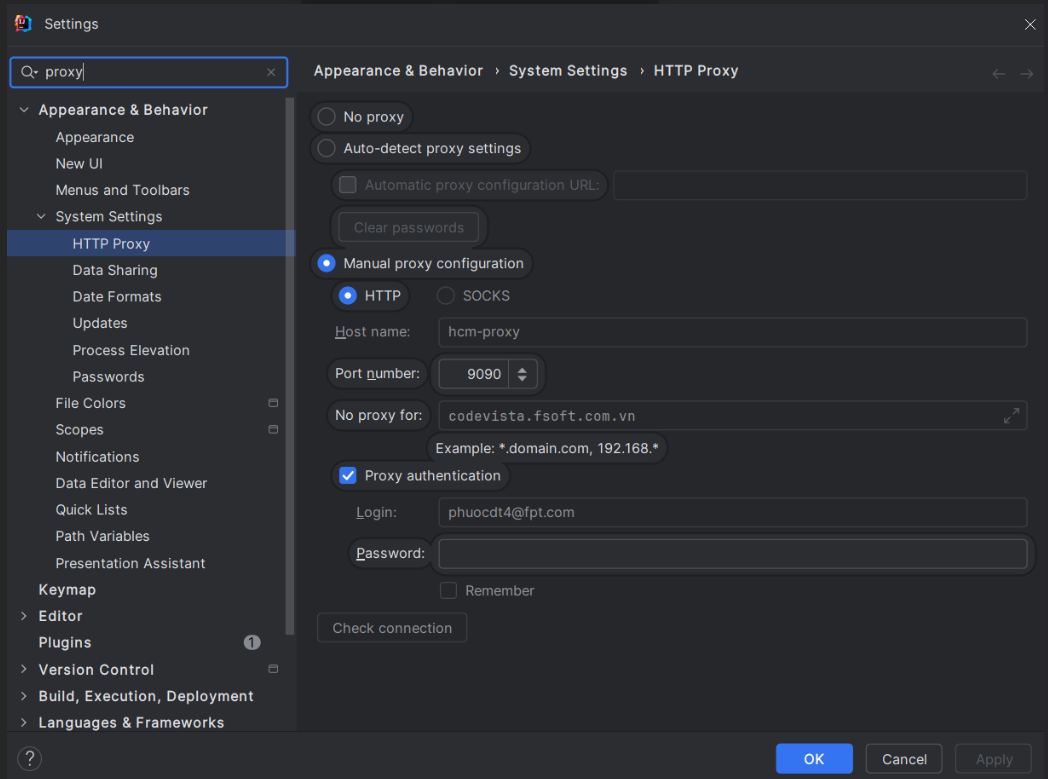
Case 2
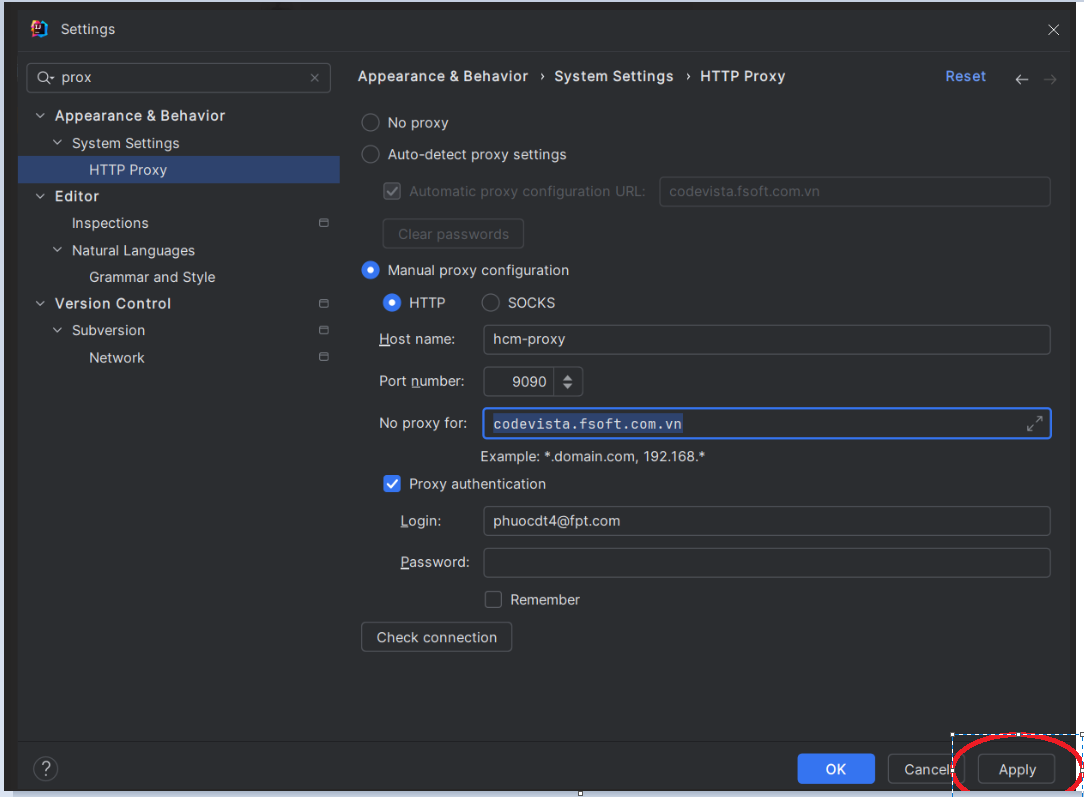
- After configuring the proxy: →Select Apply → Restart your IDE → Login to CodeVista.